
Mastering Snapseed: Transform Your Smartphone Snaps into Art
Let’s be honest: even the best smartphone cameras - even my beloved Google Pixel - can sometimes struggle to capture the true feeling of Ireland. The camera might flatten the dramatic contrast of a stormy sky over the Atlantic, or lose the intricate texture of moss in an ancient oak forest.
That is where Snapseed comes in.
It is, in my opinion, the absolute essential "darkroom in your pocket." It’s free, it’s powerful (owned by Google), and it offers granular control that Instagram filters can only dream of. Whether you are shooting grand landscapes in Kerry or tiny fungi in Wicklow, here is how to take your photos from "flat" to "featured."
Snapseed is available free in the Google Play Store or the Apple App Store.
1. The Foundation: "Tune Image" is Your Best Friend
Before you get fancy, you need to fix the lighting. Open Tools > Tune Image. Instead of just slapping up the brightness, swipe up and down to access the hidden menu.
Ambiance: This is the magic slider. Unlike "Saturation" (which boosts everything), Ambiance balances the light in the photo. It brings light into the shadows and recovers details in the highlights. Crank this up slightly for that painterly look.
Shadows: Ireland has moody lighting. If your foreground (rocks, trees) is too dark, bump the Shadows up.
Warmth: Irish light is naturally cool (blue). If the photo feels too cold and sterile, add a touch of warmth to bring back the earthy tones of the landscape.
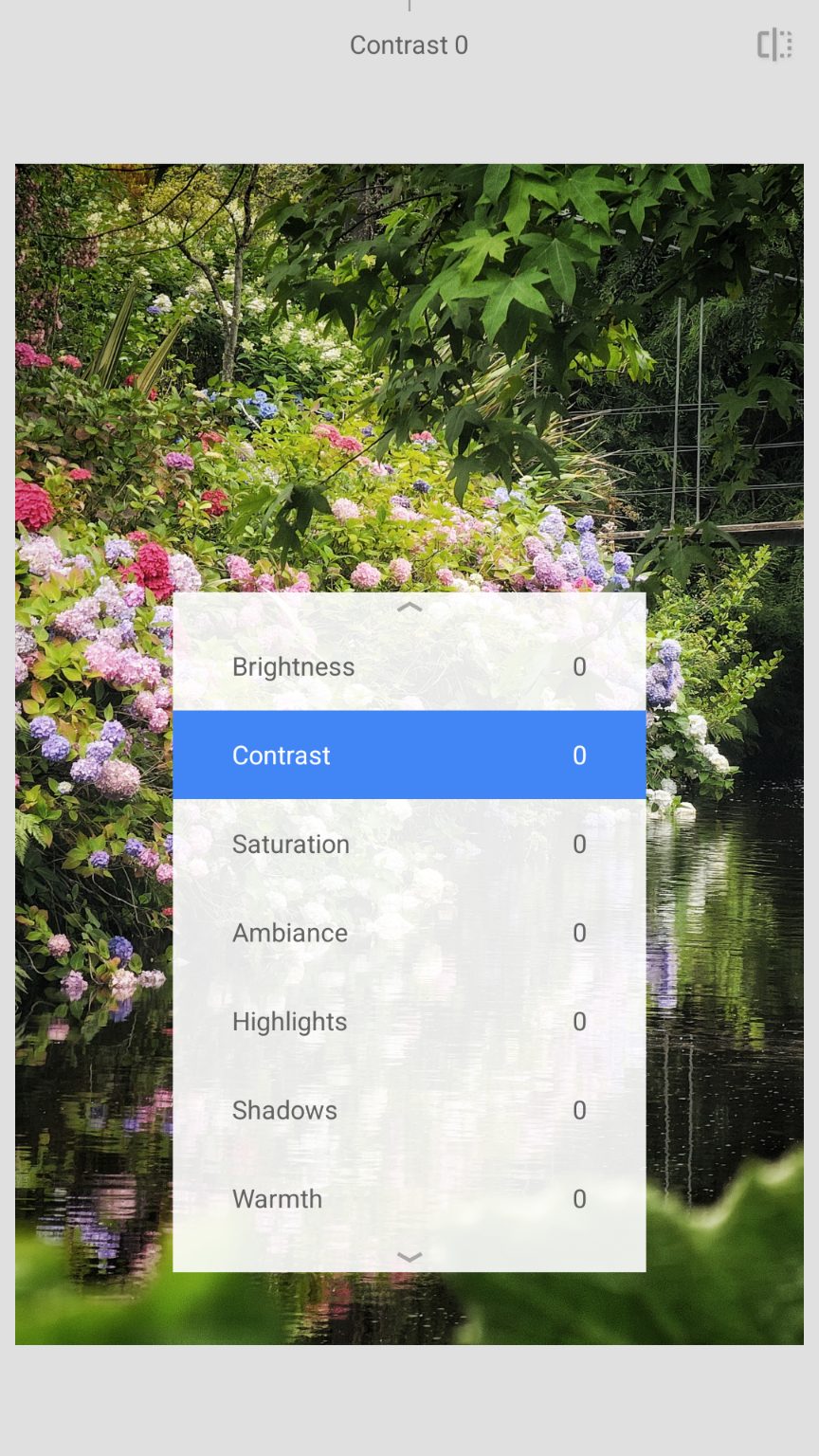
Fix the Lighting
Open Tools > Tune Image
2. Scenario: The "Grey Sky" Landscape
We get a lot of grey days here. A flat white sky can ruin a beautiful shot of a green field.
The Tool: “Selective”
The Trick: Place a control point on the sky. Pinch to reduce the circle size so it only affects the clouds.
The Edit: Drop the Brightness slightly and increase Structure. This pulls detail out of the clouds, turning a "white wash" into a dramatic, brooding sky.
The Twist: In an image with sky and grass, you could place a second point on the grass and bump up the Saturation slightly. This creates a contrast between the moody grey sky and the bright grassy ground below.
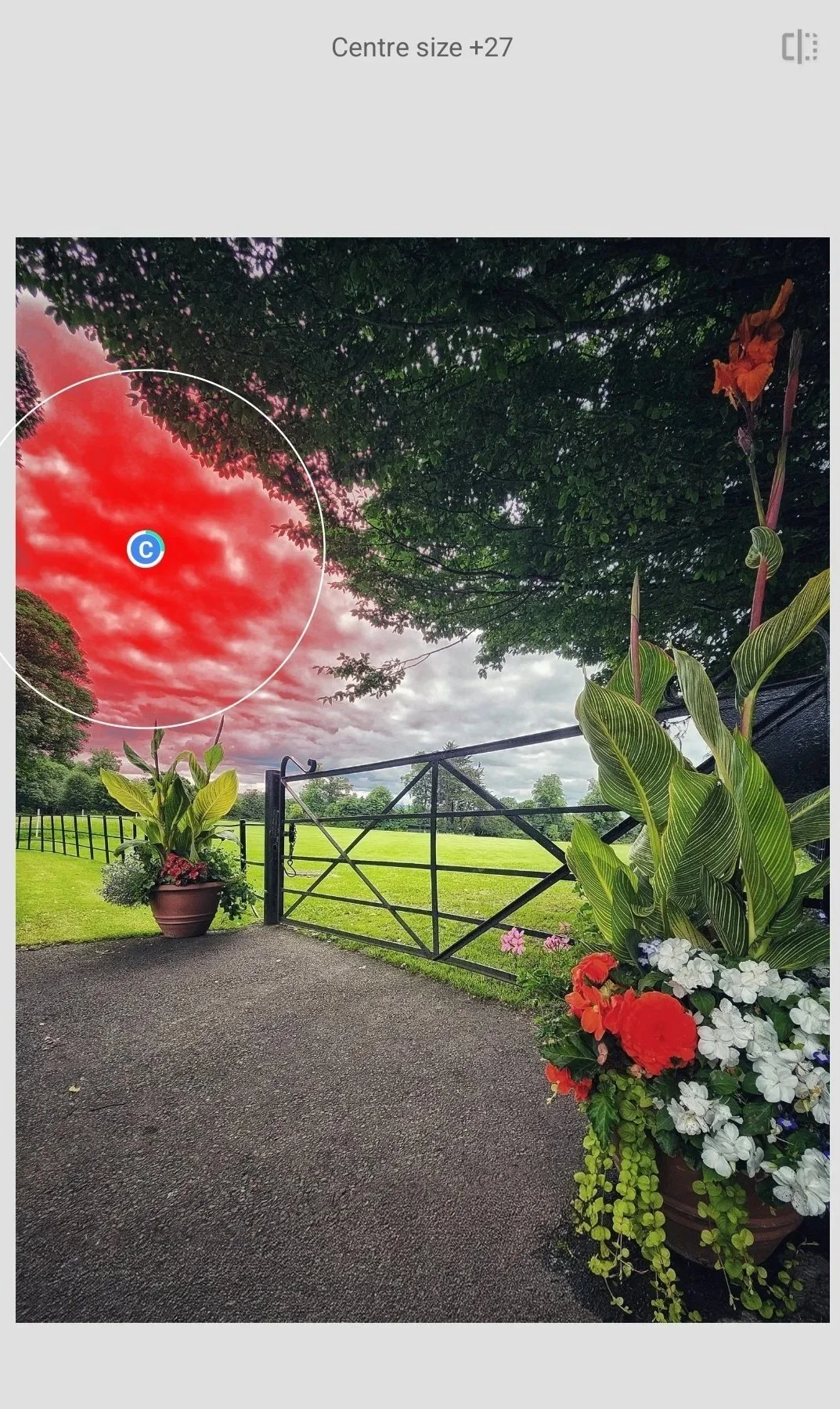
Selective
Drop the Brightness slightly and increase Structure. This pulls detail out of the clouds, turning a "white wash" into a dramatic, brooding sky.
The “Brush” tool also does something similar, but I’ll cover that in a future tutorial.
3. Scenario: The "Forest Floor" Macro (Fungi & Moss)
If you follow me, you know I’m obsessed with mushrooms. But smartphone cameras sometimes have a deep depth of field, meaning the background is too sharp, distracting from your tiny subject.
The Tool: “Lens Blur”
The Trick: Place the blue dot directly on your mushroom or moss patch.
The Edit: Adjust the Blur Strength. Don't go to 100% (it looks fake). Stick around 30-40%.
The Secret Sauce: Use the Tonal Contrast tool (in the main menu). It brings out the "crunchy" textures in bark and stone without making the photo look grainy. It is perfect for macro details.
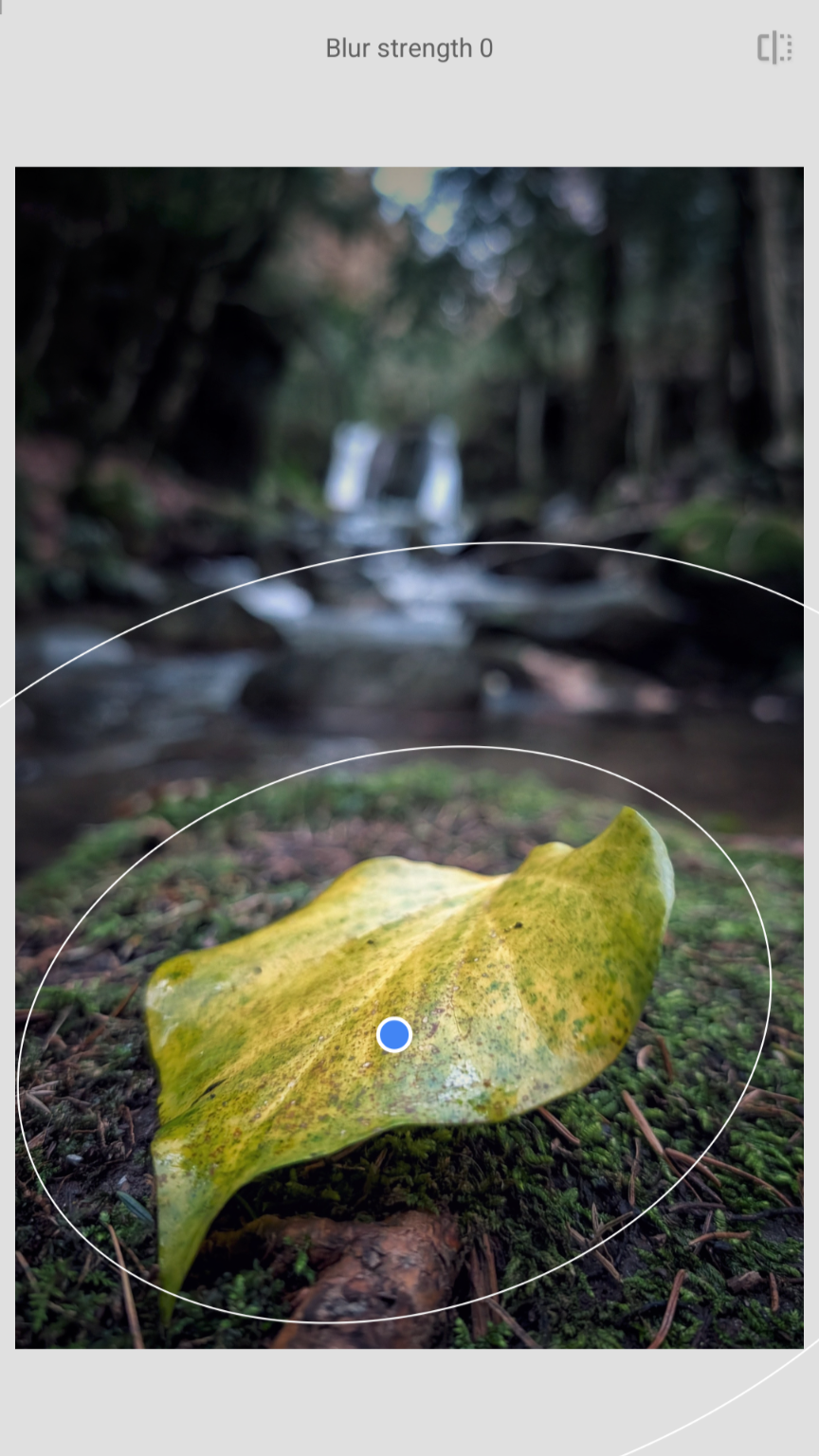
Lens Blur
Adjust the Blur Strength. Don't go to 100% (it looks fake). Stick around 30-40%.
4. Scenario: Architecture & Pub Fronts
Shooting a colourful pub in Galway or a Georgian door in Dublin? Smartphones often distort lines, making buildings look like they are leaning backward.
The Tool: “Perspective”
The Trick: Use the Free or Tilt mode to physically drag the corners of the image until the vertical lines of the building are perfectly straight.
Why it works: Straight lines make a photo feel professional and intentional. Snapseed will automatically fill in the black edges created by the tilt (smart fill), though it works best if you leave a little room around your subject when shooting.
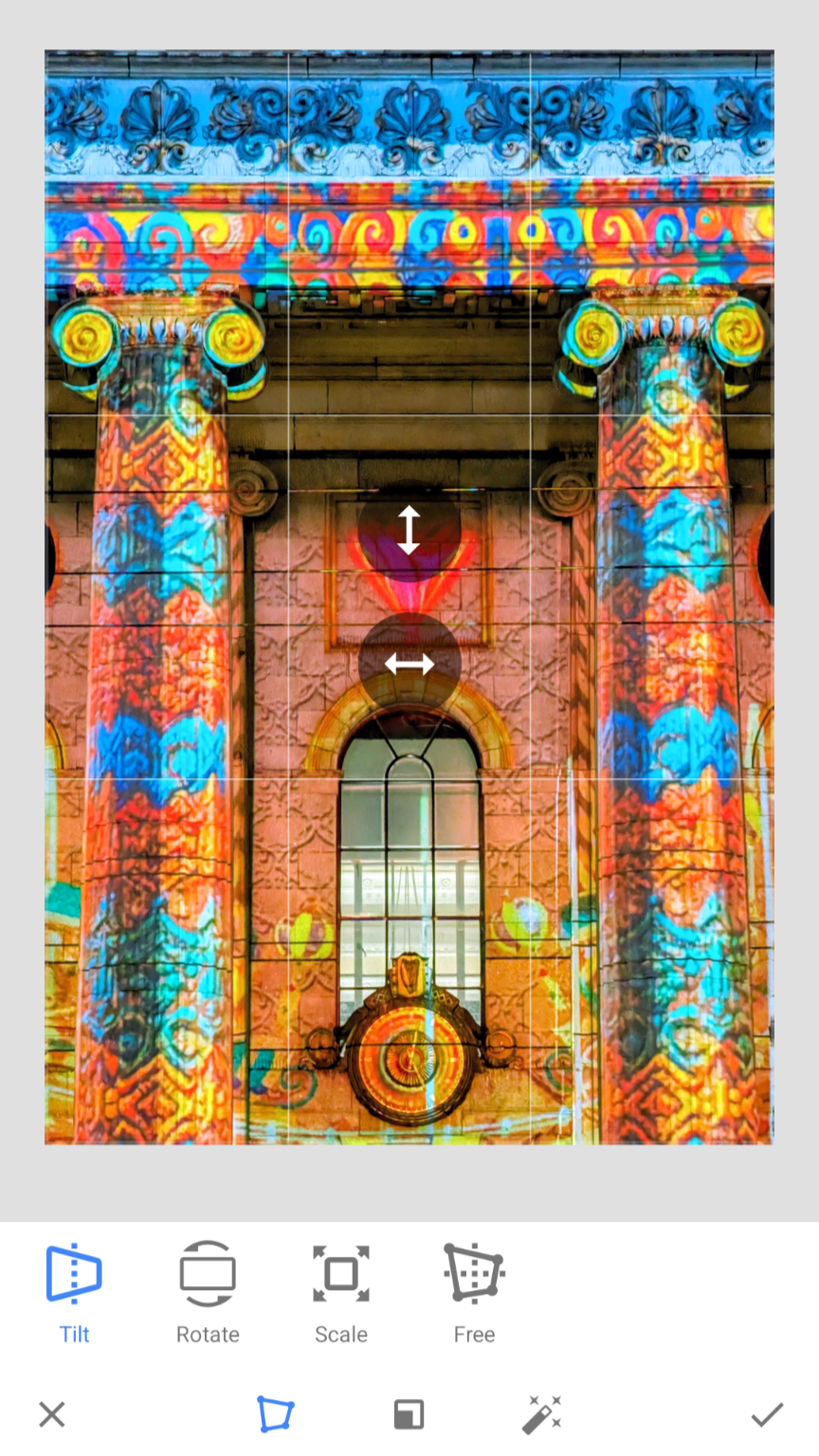
Perspective
Use the Free or Tilt mode to physically drag the corners of the image until the vertical lines of the building are perfectly straight.
5. Scenario: The "Over-Sharpened" Digital Look
Let’s face it: modern smartphones (especially Pixels and Samsungs) can be aggressive with their processing. They over-sharpen leaves, grass, and flowing water, making the photo look "crunchy" and digitally manufactured.
The Tool: Glamour Glow.
The Problem: Digital harshness kills the ethereal vibe of an Irish mist or a soft sunrise.
The Trick: Select Style 1 or 2 for a balanced start. I find Style 4 is awesome for winter photos as it gives a coolness to the pictures, and Style 5 is perfect for Autumn as it adds a warm tone.
The Edit: This tool acts like a diffusion filter. It softens the hard edges of the pixels without making the photo blurry. It gives forests and waterfalls a romantic, painterly quality.
Watch Out: Glamour Glow tends to pump up the saturation. You might need to dial the Saturation slider down within the tool to keep it looking natural.
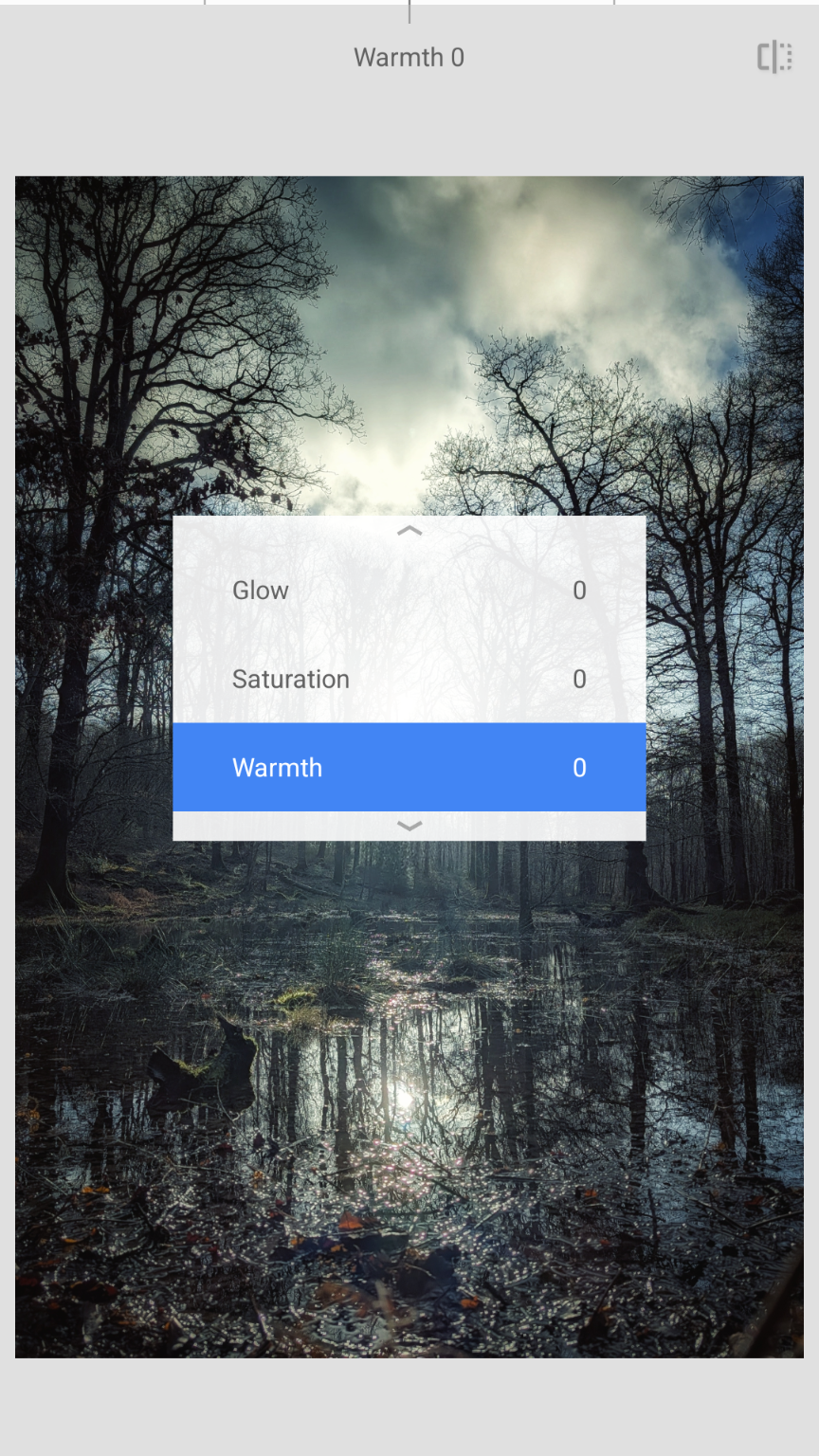
Glamour Glow
This tool acts like a diffusion filter. It softens the hard edges of the pixels without making the photo blurry. It gives forests and waterfalls a romantic, painterly quality.
6. Scenario: Creating "The Mood" (Colour Grading)
Sometimes a photo is technically perfect—sharp, well-lit, straight—but it feels boring. It lacks that cinematic "Pocket Ireland" atmosphere. You don't want it to look like a filtered Instagram story; you want it to look like a memory.
The Tool: Vintage.
The Vibe: Don't think of this as making the photo look "old." Think of it as a shortcut to professional colour grading.
The Trick: Swipe through the styles. Style 9 is often a favourite of mine for landscapes.
The Edit:
Style Strength: Lower this to about 25-30%. You want a hint of the colour grade, not a heavy filter.
Vignette Strength: This is the secret weapon here. Darkening the edges slightly draws the viewer’s eye right to the centre of the frame (perfect for that lone tree or castle ruin), but as usual with editing: don’t overdo it! I usually lower the vignette intensity a little from the default.
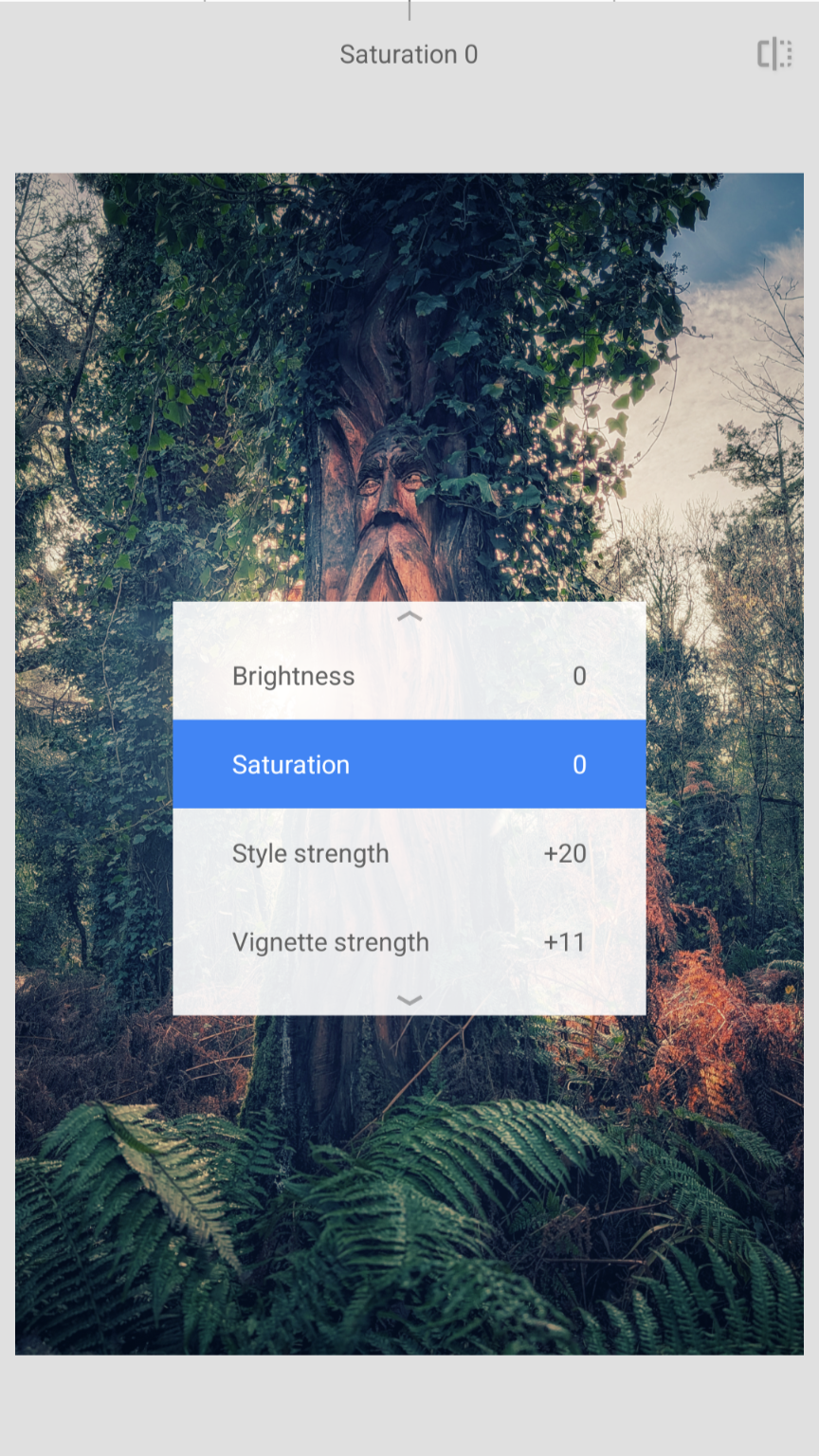
Vintage
Style 9 is often a favourite of mine for landscapes.
Snapseed isn't about faking a photo; it's about helping the camera see what your eyes saw. The Irish landscape is full of texture, mood, and drama—don't let the software flatten it out!
Of course, there’s many other tools to explore in the app, so don’t be afraid to fiddle with settings and experiment. That’s how I learned what works!
Snapseed is available free in the Google Play Store or the Apple App Store.
